

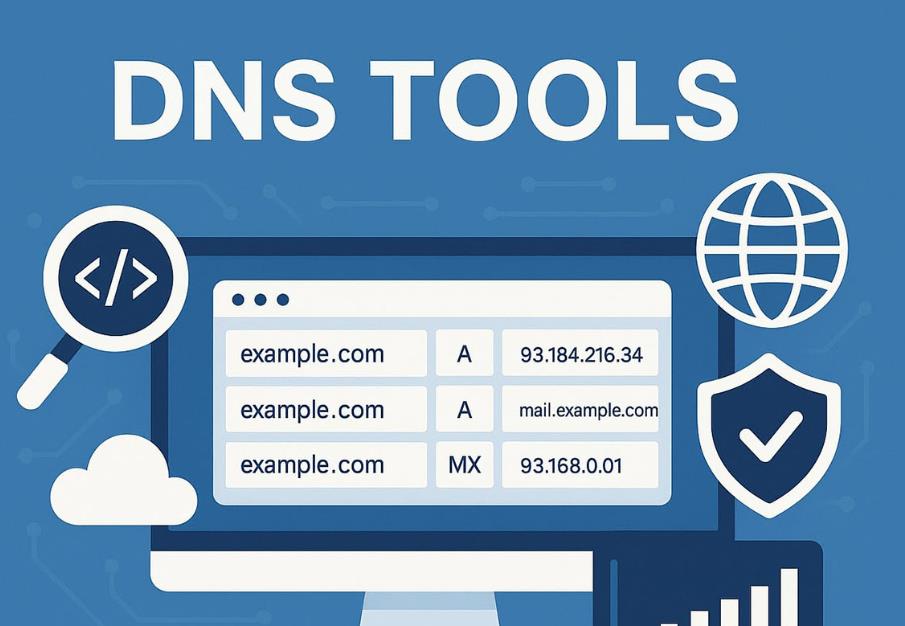

In today’s digital world, nearly every interaction on the internet relies on the Domain Name System (DNS). From loading a website to sending an email, DNS acts as the backbone that translates human-readable domain names into machine-readable IP addresses. Yet, when issues arise—such as slow website loading or unreachable servers—understanding and using DNS query tools becomes essential. This article provides a comprehensive guide on DNS query tools, explaining their underlying principles and demonstrating practical usage for both beginners and IT professionals.
Understanding the Basics of DNS
Before diving into tools, it’s essential to understand what DNS is and how it works.
What is DNS?
DNS, often referred to as the “internet’s phonebook,” is a distributed system that maps domain names (like example.com) to IP addresses (192.0.2.1). Without DNS, users would have to remember the numeric IP addresses of every website—a cumbersome and error-prone task.
How DNS Works
DNS operates as a hierarchical system:
- Recursive Queries: Your computer asks a DNS resolver (usually provided by your ISP or a public DNS service) to find the IP address for a domain. If the resolver doesn’t know the answer, it recursively queries other DNS servers on your behalf.
- Iterative Queries: The resolver may contact multiple authoritative DNS servers in a step-by-step manner, each providing either a direct answer or a referral to the next server.
Key DNS Record Types
Understanding record types is crucial when using DNS query tools:
- A Record: Maps a domain to an IPv4 address.
- AAAA Record: Maps a domain to an IPv6 address.
- CNAME Record: Alias pointing one domain to another.
- MX Record: Specifies mail servers for a domain.
- TXT Record: Holds text information, often used for SPF, DKIM, or verification.
- NS Record: Identifies authoritative name servers.
Time-to-Live (TTL)
TTL defines how long a DNS record is cached by resolvers. A low TTL ensures changes propagate quickly but increases query volume, while a high TTL reduces queries but delays updates.
Why Use DNS Query Tools?
DNS query tools are indispensable for several reasons:
- Troubleshooting inaccessible websites.
- Verifying DNS propagation after updates.
- Analyzing DNS configuration and security.
- Optimizing DNS performance and response times.
Whether you’re a system administrator, web developer, or network engineer, these tools help diagnose and resolve DNS-related issues efficiently.
Common DNS Query Tools
DNS query tools come in three main categories: command-line tools, online tools, and graphical interfaces.
Command-Line Tools
- nslookup
- Simple tool available on Windows, Linux, and macOS.
- Queries specific DNS record types and servers.
- dig
- Powerful, flexible tool for Linux/macOS, also available on Windows.
- Can perform detailed queries with options to display TTL, authority, and recursion.
- host
- Lightweight utility to resolve domain names to IP addresses quickly.
- Useful for scripting and batch queries.
Online Tools
Online DNS tools provide a convenient alternative without installing software:
- Google Admin Toolbox Dig: Simulates dig queries from multiple global locations.
- MXToolbox: Checks A, MX, TXT, SPF, and blacklists.
- DNS Checker: Monitors global propagation of DNS changes.
Graphical Tools (GUI)
- Windows DNS Manager: Allows admins to manage DNS records on Windows servers.
- DNS Benchmark: Tests performance of different DNS servers for latency and reliability.
Tool Comparison
| Tool Type | Advantages | Disadvantages |
|---|---|---|
| Command-line | Detailed output, scripting support | Requires technical knowledge |
| Online | Easy, cross-platform | Limited customization, privacy concerns |
| GUI | User-friendly, visual interface | May lack advanced features |
Practical Usage of DNS Query Tools
Hands-on experience is the best way to understand DNS query tools. Below are examples using popular utilities.
Using nslookup
To query the A record of example.com:
nslookup example.com
Output Explanation:
- Server: DNS server used for the query.
- Address: IP of the server.
- Name: The queried domain.
- Address: IP address corresponding to the domain.
You can also specify a DNS server:
nslookup example.com 8.8.8.8
Using dig
dig provides detailed output, including TTL, authoritative name servers, and recursion status.
- Query A record:
dig example.com A +short
- Query MX records:
dig example.com MX
- Query all available records:
dig example.com ANY
Pro Tip: Use @DNS_SERVER to query a specific DNS server:
dig @8.8.8.8 example.com
Using host
Quick lookup for domain resolution:
host example.com
Output includes the domain name and its IP address. Ideal for quick checks or scripts.
Using Online Tools
- MXToolbox:
- Enter the domain → select record type → view results.
- Check multiple record types including MX, TXT, SPF, and DKIM.
- Google Admin Toolbox Dig:
- Choose global locations → enter domain → select record type → query.
- Useful for checking global DNS propagation.
Practical Tips
- Batch Queries: Save multiple domains in a file and loop through using
digornslookup. - Propagation Verification: Use multiple DNS servers worldwide to ensure updates are applied.
- Specify DNS Server: Useful when troubleshooting ISP-related DNS issues.
Advanced Applications and Case Studies
DNS query tools are not only for basic lookups—they can be crucial in diagnosing real-world issues.
Case Study 1: Website Unreachable
Problem: Users report example.com is not loading.
Steps:
- Query A record using
digornslookup. - Verify if the IP matches the server.
- Check TTL to ensure the record has propagated.
- If IP differs, flush local DNS cache:
# Windows
ipconfig /flushdns

# macOS
sudo dscacheutil -flushcache
sudo killall -HUP mDNSResponder
Outcome: Resolving IP mismatch restores access.
Case Study 2: Email Delivery Failures
Problem: Outgoing emails are blocked.
Steps:
- Check MX records:
dig example.com MX
- Verify SPF and DKIM in TXT records.
- Correct any misconfigured entries in DNS provider settings.
- Monitor propagation to ensure changes are effective.
Outcome: Proper DNS records restore email delivery.
Case Study 3: Detecting DNS Hijacking
Problem: Suspicious redirection of domain.
Steps:
- Query authoritative DNS server.
- Compare response with expected IP.
- Use online tools to verify global resolution consistency.
Outcome: Mismatch indicates potential hijacking, prompting security measures.
DNS Optimization Tips
- Set appropriate TTL values for frequently updated records.
- Monitor DNS response times with tools like DNS Benchmark.
- Ensure redundancy with multiple authoritative DNS servers.
Common Misconceptions
- DNS changes are instant: Updates may take time depending on TTL and propagation.
- All tools show identical results: Command-line, online, and GUI tools may differ slightly due to caching.
- Public queries replace private network troubleshooting: They help diagnose, but do not replace local network checks.
- DNS errors always indicate DNS server issues: Sometimes firewalls, CDNs, or ISP blocks are the cause.
DNS query tools are essential for anyone managing websites, networks, or online services. By understanding the principles behind DNS and mastering tools like dig, nslookup, host, and online utilities, you can efficiently troubleshoot issues, ensure security, and optimize performance. Remember to verify changes globally, monitor TTL, and combine tools for the best results. Whether you are a network professional or an IT enthusiast, practical knowledge of DNS queries empowers you to navigate the complex web infrastructure with confidence.