


In today’s digital world, your keyboard is one of the most essential tools you use every day—whether you are working remotely, gaming, coding, designing, studying, or simply browsing the web. When even a single key stops working properly, it can disrupt your workflow, cause frustrating mistakes, and significantly reduce productivity. Fortunately, modern technology offers a fast and convenient solution: online keyboard testing tools.
This comprehensive guide will walk you through everything you need to know about online keyboard testing. You’ll learn how these tools work, how to use them step by step, what common keyboard problems look like, how to diagnose hardware vs software issues, and what to do if your keyboard fails the test.
Whether you’re a casual user, an IT professional, a gamer, or a content creator, this tutorial will help you quickly determine whether your keyboard is functioning correctly—without installing any software.
Why Keyboard Testing Is Important
Many people don’t notice keyboard issues until they become severe. A single unresponsive key might not seem like a big deal at first, but over time it can:
- Cause typos and slow typing speed
- Interfere with gaming controls
- Disrupt coding and command shortcuts
- Break productivity workflows
- Lead to data entry errors
- Trigger accessibility issues for users with disabilities
Keyboard testing is especially important in the following situations:
- After spilling liquid on your keyboard
- When buying a used keyboard or laptop
- After updating your operating system
- If certain keys respond intermittently
- When setting up a new mechanical keyboard
- Before live gaming, streaming, or presentations
Using an online keyboard test allows you to detect these problems instantly, without technical expertise.
What Is an Online Keyboard Test?
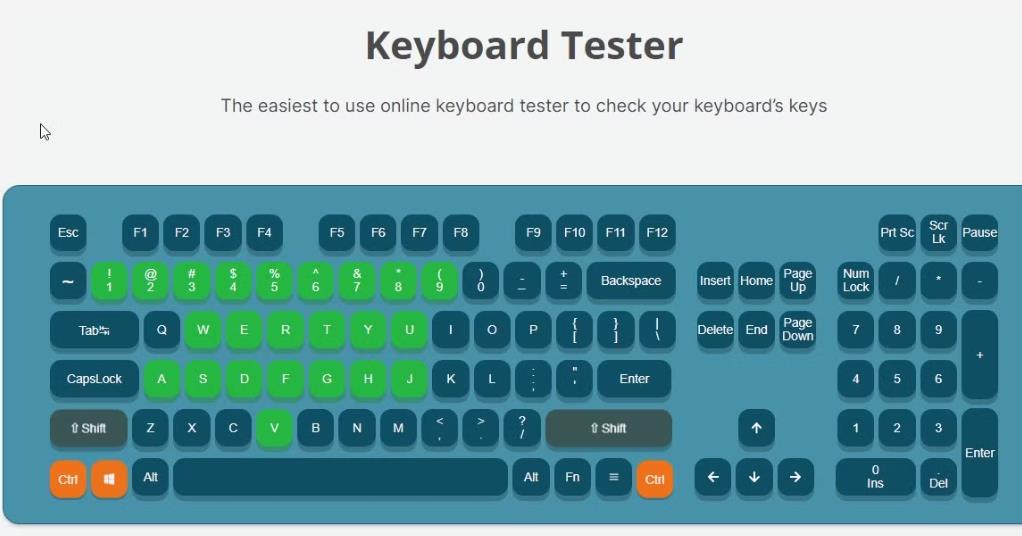
An online keyboard test is a web-based tool that allows you to press keys on your physical keyboard and instantly see whether the system detects each keystroke correctly. These tools work directly in your web browser and require no installation.
Most online keyboard testers provide:
- A virtual keyboard layout on screen
- Real-time key highlighting when pressed
- Detection of simultaneous key presses (anti-ghosting)
- Identification of stuck, dead, or double-registering keys
- Support for Windows, macOS, Linux, and sometimes mobile keyboards
They are widely used for troubleshooting, quality control, and performance verification.
How Online Keyboard Testing Works (Technical Overview)
When you press a physical key, your keyboard sends a scan code to your computer through USB or Bluetooth. The operating system translates this scan code into a key event that your browser can detect using technologies such as:
- JavaScript event listeners (
keydown,keyup,keypress) - OS-level HID (Human Interface Device) drivers
- USB or Bluetooth communication protocols
Online keyboard testers simply visualize these browser-detected key events in real time. If a key fails to register in the browser, it usually indicates one of the following:
- Hardware switch failure
- Dirty or damaged contacts
- Mechanical wear
- Driver or OS-level input conflicts
- Physical disconnection or power issues
Step-by-Step Guide: How to Test Your Keyboard Online
Step 1: Choose a Reliable Online Keyboard Test Tool
Look for a keyboard testing website that offers:
- Full keyboard layout support
- Real-time detection
- No ads blocking keys
- Strong browser compatibility
- Privacy-friendly design (no tracking of keystrokes)
Popular options typically include:
- Simple key tester pages
- Mechanical keyboard test tools
- Gaming-oriented input checkers
You can find many by searching for “online keyboard test” or “keyboard key tester.”
Step 2: Prepare Your Keyboard for Testing
Before testing, make sure:
- Your keyboard is properly connected (USB or Bluetooth)
- Batteries are charged (for wireless keyboards)
- No debris is visibly blocking the keys
- No software overlays or macros are running
- No remote desktop software is intercepting input
Close background programs that may capture keystrokes, such as:
- Screen recorders
- Game overlays
- Macro utilities
- Accessibility remapping tools
Step 3: Open the Online Keyboard Test Page
Once on the tester page:
- You will typically see a visual keyboard layout
- Each key corresponds to a physical key on your keyboard
- Unpressed keys appear inactive, while pressed keys light up or change color
Step 4: Press Each Key One by One
Now systematically test every key:
- Start with the alphanumeric keys (A–Z, 0–9)
- Test all function keys (F1–F12 or beyond)
- Check modifier keys (Shift, Ctrl, Alt, Command)
- Test navigation keys (Arrow keys, Home, End, Page Up, Page Down)
- Verify the numeric keypad (if available)
- Press special keys (Esc, Tab, Caps Lock, Insert, Delete)
Each time you press a key:
- The corresponding on-screen key should light up immediately
- The tool should log the key code or key name
- There should be no noticeable delay
Step 5: Test Key Combinations and Anti-Ghosting
Many keyboards—especially gaming and mechanical keyboards—must handle multiple key presses at once.
Hold down combinations such as:
- W + A + S + D (for gaming)
- Ctrl + Shift + Esc
- Alt + Tab
- Shift + multiple letters
If some keys fail to register when others are pressed, your keyboard may suffer from ghosting or limited key rollover (KRO).
Step 6: Identify Any Failed or Inconsistent Keys
Problems you may observe:
- Key does not light up → likely dead key
- Key lights up only sometimes → intermittent failure
- Key triggers twice → double input issue
- Wrong key lights up → mapping or firmware issue
- Key remains “pressed” on screen → stuck or shorted key
Make a list of problematic keys for further diagnosis.
Common Keyboard Problems Detected by Online Tests
1. Dead Keys
A dead key is one that produces no response at all. Causes include:
- Broken internal switch
- Severed trace on the keyboard PCB
- Liquid damage
- Extreme mechanical wear
Online tests reveal this instantly by showing no reaction when the key is pressed.
2. Stuck Keys
A stuck key appears continuously “pressed” even when you release it. This may be caused by:
- Physical obstruction
- Sticky residue from spills
- Warped keycap
- Faulty switch contacts
This issue is especially dangerous in games and typing-sensitive work.
3. Double Typing (Key Chatter)
Key chatter happens when a single press registers multiple times. This is common in:
- Aging mechanical switches
- Low-quality membrane keyboards
- Dust-contaminated contacts
You’ll see multiple rapid activations on the test screen.
4. Key Mapping Errors
Sometimes, pressing one key triggers a different key on screen. This usually indicates:
- Incorrect keyboard layout setting (QWERTY vs AZERTY)
- Corrupted drivers
- Firmware issues
5. Ghosting and Limited Key Rollover
With some low-end keyboards, pressing certain key combinations may prevent other keys from registering. This is called ghosting and is a hardware limitation.
Hardware vs Software Keyboard Problems
One of the most valuable benefits of online keyboard testing is helping you determine whether the issue is hardware-related or software-related.
Signs of Hardware Issues
- Key never registers in the browser
- Same key fails across different computers
- Physical resistance, grinding, or lack of tactile response
- Visible liquid or corrosion under the key
- Issue persists in BIOS or boot menu
These require physical repair or keyboard replacement.
Signs of Software Issues
- Key works in one app but not another
- Key mapping is wrong
- Problem appeared after OS update
- Key works intermittently depending on software
- External keyboard works fine on the same machine
These can often be fixed with drivers, settings, or remapping tools.
How to Fix Common Keyboard Problems After Testing
1. Clean the Keyboard Properly
Cleaning solves a large percentage of keyboard problems.
Basic Cleaning:
- Disconnect the keyboard
- Turn it upside down and gently shake
- Use compressed air between keys
- Wipe surface with isopropyl alcohol (70%+)
Deep Cleaning (Mechanical Keyboards):
- Remove keycaps
- Clean switches with air and alcohol
- Let everything dry fully before reassembly
2. Update or Reinstall Keyboard Drivers
On Windows:
- Open Device Manager
- Uninstall the keyboard device
- Restart the system
- Let Windows reinstall automatically
On macOS:
- Check input sources
- Reset NVRAM/PRAM if needed
3. Check OS Keyboard Layout Settings
Incorrect layouts can cause apparent key failures.
Verify:
- Language input settings
- Regional keyboard layout
- IME or third-party layout tools
4. Test in BIOS or Safe Mode
If a key fails in BIOS, it’s almost certainly a hardware problem. If it works in BIOS but not in Windows, it’s very likely a software issue.
5. Use Key Remapping as a Temporary Solution
If a key is permanently dead, you can remap it using tools such as:
- Microsoft PowerToys
- SharpKeys
- Karabiner-Elements (macOS)
This does not fix hardware damage but can restore usability temporarily.
Special Considerations for Mechanical Keyboards
Mechanical keyboards use individual switches for each key. Testing is especially important because:
- Switch aging leads to chatter
- Solder joints may crack
- Hot-swappable sockets may loosen
- Custom firmware can misbehave
With hot-swappable mechanical keyboards, you can replace individual switches if only a few keys fail the online test.
Laptop Keyboard vs External Keyboard Testing
Laptop keyboards are more difficult to repair due to:
- Integrated design
- Ribbon cable connections
- Membrane layers under the keyboard deck
If your online test shows many dead laptop keys clustered together, the ribbon cable or internal connection is often the cause.
External keyboards, on the other hand, are easier to:
- Clean
- Disassemble
- Replace
- Test across multiple systems
Keyboard Testing for Gamers
Gamers rely heavily on multi-key input accuracy. Online keyboard testing is useful for:
- Checking anti-ghosting before competitive matches
- Verifying controller profiles
- Confirming macro and remap behavior
- Testing low-latency wireless keyboards
For gaming keyboards, pay special attention to:
- Key rollover (6KRO vs NKRO)
- Simultaneous modifiers + action keys
- Rapid tapping response
Keyboard Testing for Programmers and Office Workers
For coding and office productivity, critical keys include:
- Enter
- Backspace
- Tab
- Shift
- Control
- Brackets, slashes, and punctuation
Even a small failure can break syntax, formatting, and efficiency. Regular online keyboard checks are recommended for professional environments.
Keyboard Testing on Mobile and Tablets
Most online keyboard testers focus on physical keyboards. However, mobile users with:
- Bluetooth keyboards
- USB-C keyboards
- Tablet docking keyboards
can still use these tools via mobile browsers. Results may vary depending on OS input restrictions.
Privacy and Security of Online Keyboard Tests
Many users worry about privacy because keyboard testing involves keystrokes. Reputable tools do NOT:
- Log raw keystroke data
- Store typing content
- Transmit personal text
They only detect key codes, not the actual text meaning. Still, you should:
- Avoid typing real passwords during testing
- Use trusted testing websites
- Prefer offline testing for high-security environments
When Should You Replace Your Keyboard?
You should strongly consider replacing your keyboard if:
- Multiple keys fail consistently
- Liquid damage has occurred
- Key chatter becomes frequent
- The PCB is damaged
- Repair costs exceed replacement cost
Keyboards are relatively inexpensive compared to downtime and frustration.
Best Practices for Ongoing Keyboard Health
- Avoid eating and drinking near your keyboard
- Clean it every 3–6 months
- Use a keyboard cover in dusty environments
- Store mechanical keyboards in dry conditions
- Keep firmware updated for programmable keyboards
- Perform online key tests after spills or drops
Frequently Asked Questions (FAQ)
Is online keyboard testing accurate?
Yes. Online tools accurately reflect the key events detected by your operating system and browser, which is sufficient for diagnosing most keyboard problems.
Can an online keyboard test fix my keyboard?
No. It is a diagnostic tool, not a repair tool. It helps identify the problem so you can decide the next step.
Do I need to install anything?
No. Online keyboard tests run directly in your browser.
Can I test wireless keyboards online?
Yes. Bluetooth and wireless keyboards work the same way as wired keyboards in online tests.
Why does my key work in the tester but not in some apps?
This usually indicates a software conflict, hotkey override, or application-level input filtering.
Online keyboard testing is one of the fastest, easiest, and most reliable ways to diagnose keyboard problems—whether you’re dealing with a single unresponsive key or a full keyboard malfunction. It requires no technical expertise, no installations, and only takes a few minutes to complete a full diagnostic.
By following this tutorial, you now know:
- How online keyboard tests work
- How to test every key step by step
- How to identify common keyboard failures
- How to distinguish hardware vs software problems
- How to clean, repair, or replace your keyboard
Regular keyboard testing should be part of your digital maintenance routine—especially if you depend on your keyboard for work, gaming, or creative projects.
If your keyboard passed the test, you can confidently rule out hardware failure. If it didn’t, you now have a clear roadmap for what to fix next.