

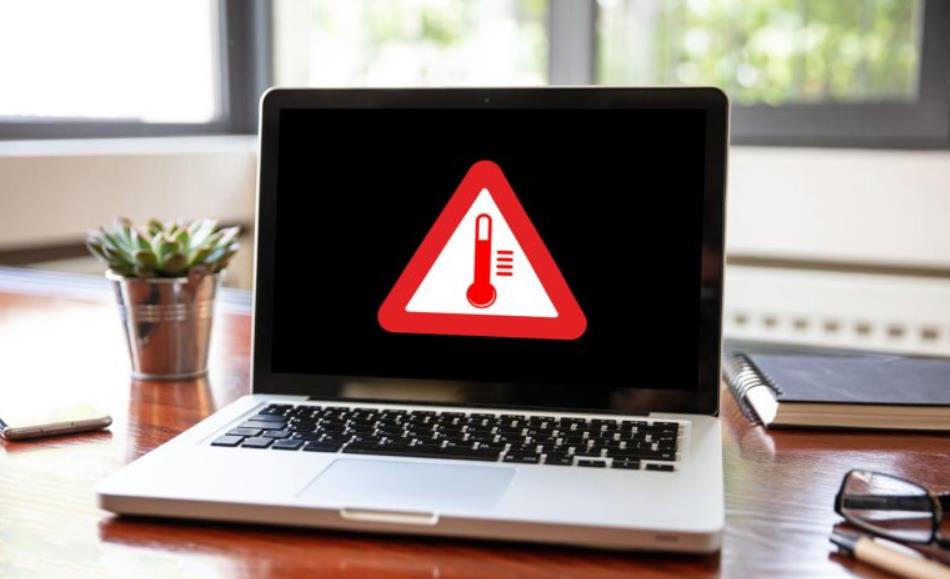

In today’s digital world, computers, laptops, smartphones, and tablets have become indispensable tools in both our professional and personal lives. From working on complex spreadsheets to streaming high-definition videos or playing graphic-intensive games, our devices often operate under heavy workloads. However, one critical aspect of device maintenance that many users overlook is temperature management.
Overheating is a common issue that can significantly affect your device’s performance, longevity, and safety. When a computer or smartphone exceeds its recommended operating temperature, it may experience performance throttling, shortened battery lifespan, sudden shutdowns, or, in extreme cases, permanent hardware damage.
You might not notice the early signs of overheating until it’s too late, but by understanding the normal temperature ranges, knowing how to monitor device temperatures, and recognizing warning signs, you can take proactive steps to protect your investment. This article will guide you through everything you need to know about device temperature monitoring, including practical tools, preventive measures, and emergency responses to overheating situations.
The Risks and Consequences of Device Overheating
Overheating affects computers and smartphones differently, but the consequences are serious in both cases. Understanding the risks can motivate users to prioritize temperature monitoring and device care.
1. Computers
Modern computers, especially those with high-performance CPUs and GPUs, generate a significant amount of heat. Overheating in computers can result in:
- Reduced Performance: Most modern CPUs and GPUs automatically reduce their clock speed when temperatures exceed safe thresholds, a process known as thermal throttling. While this prevents immediate damage, it reduces performance and can affect gaming, video rendering, or multitasking.
- Hardware Damage: Prolonged exposure to high temperatures can deteriorate components such as the motherboard, RAM, graphics card, and storage devices. For example, hard drives may fail faster if consistently operating above 50°C.
- System Instability: Overheating can cause blue screens, unexpected restarts, or system freezes, which can lead to data loss and frustration.
2. Smartphones and Tablets
Mobile devices have limited cooling systems, so overheating can occur more easily. Overheating in smartphones and tablets may lead to:
- Battery Degradation: Lithium-ion batteries degrade faster when exposed to high temperatures, reducing overall battery capacity and lifespan.
- Performance Throttling: Devices may slow down to prevent further heat buildup, making apps less responsive and games choppy.
- Screen and Component Damage: Persistent high temperatures can affect the touchscreen’s responsiveness and cause internal components to fail.
- Safety Risks: In rare cases, extreme overheating can cause battery swelling or leakage.
Why Overheating Happens
Several factors contribute to device overheating:
- High-performance tasks such as gaming, video editing, or multitasking.
- Environmental factors like high ambient temperatures or direct sunlight exposure.
- Dust accumulation in cooling fans or heat sinks.
- Poor ventilation due to placement on soft surfaces (beds, couches, or laps).
- Outdated software or inefficient power management settings.
By recognizing the consequences and causes, users can better appreciate the importance of proactive temperature monitoring.
Normal Temperature Ranges for Devices
Understanding what constitutes “normal” operating temperatures is essential for identifying overheating. While exact thresholds vary depending on device type and model, the following ranges provide a general guideline.
1. Computers
| Component | Normal Temperature Range | Notes |
|---|---|---|
| CPU (Idle) | 30–50°C (86–122°F) | Idle means minimal activity, such as browsing or document editing |
| CPU (Load) | 60–85°C (140–185°F) | Heavy tasks like gaming or video rendering |
| GPU (Idle) | 30–40°C (86–104°F) | Modern GPUs idle cooler than CPUs |
| GPU (Load) | 65–85°C (149–185°F) | Sustained higher temperatures acceptable for short periods |
| Hard Drive (HDD) | 30–50°C (86–122°F) | SSDs generally run cooler but can reach up to 60°C under load |
Exceeding these temperatures for prolonged periods may indicate poor cooling or hardware issues.
2. Smartphones and Tablets
| Device Type | Normal Temperature Range | Notes |
|---|---|---|
| Idle | 30–40°C (86–104°F) | Everyday tasks like texting or checking emails |
| High Load | 40–50°C (104–122°F) | Gaming, streaming, or navigation under heavy use |
| Critical | 55°C+ (131°F+) | Device may automatically throttle or display overheating warnings |
Note: Surface temperature may feel warmer than the internal temperature. Internal sensors are more reliable for accurate readings.
Tools for Monitoring Device Temperature
Monitoring temperatures has become easier thanks to various software applications for computers and smartphones.
1. For Computers
Windows:
- HWMonitor: Offers detailed readings for CPU, GPU, motherboard, and hard drive temperatures.
- Core Temp: Focuses specifically on CPU temperature and supports logging.
- Open Hardware Monitor: Free, open-source software with temperature, voltage, and fan speed readings.
Mac:
- iStat Menus: Comprehensive system monitor, including temperatures and fan speeds.
- Mac Fan Control: Allows users to monitor temperatures and control fan speeds manually.
Linux:
- lm-sensors: Command-line tool for reading temperature sensors.
- Psensor: GUI tool displaying temperature trends graphically.
2. For Smartphones and Tablets
iOS:
- iStat: Offers battery and CPU temperature monitoring.
- Battery Life App: Tracks battery health and temperature trends.
Android:
- CPU-Z: Displays CPU temperature and core usage.
- AccuBattery: Monitors battery health and temperature.
- Device Info HW: Provides detailed sensor readings including temperature, voltage, and CPU load.
3. Monitoring Techniques
- Regular Checks: Monitor temperatures during both idle and high-load scenarios.
- Logging Data: Use software that records temperature trends over time to identify abnormal patterns.
- Stress Testing: Run intensive tasks temporarily to observe how your device handles high workloads.
By combining software monitoring with physical observation, users can maintain a clear understanding of their device’s thermal behavior.
Recognizing Signs of Overheating
Even without monitoring tools, devices often exhibit clear symptoms when temperatures are too high.
1. Computers
- Excessive Fan Noise: Fans running at full speed continuously indicate high internal temperatures.
- Performance Drops: Games may lag, video rendering slows, or multitasking becomes sluggish.
- Unexpected Shutdowns or Blue Screens: Safety measures trigger system shutdown to prevent damage.
- Physical Heat: The case or keyboard may become unusually hot to the touch.
2. Smartphones and Tablets
- Device Slowness: Apps lag or animations stutter.
- Battery Drain: Rapid battery percentage drops during use.
- Touchscreen Issues: Laggy or unresponsive touch controls.
- Overheating Warnings: The device may display “Device too hot” messages.
Recognizing these symptoms early allows users to take corrective action before permanent damage occurs.
Preventing Device Overheating
Prevention is always better than repair. A combination of hardware maintenance, software optimization, and good usage habits can keep devices within safe temperature limits.
1. Computer Cooling Strategies
- Clean Dust Regularly: Dust blocks airflow and traps heat. Cleaning fans and heat sinks every few months is essential.
- Improve Ventilation: Ensure adequate airflow around your device. Avoid placing laptops on soft surfaces like beds or couches.
- Use Cooling Accessories: Cooling pads for laptops and additional fans for desktops can lower temperatures significantly.
- Replace Thermal Paste: For older computers, applying fresh thermal paste to the CPU and GPU can improve heat transfer.
- Adjust Power Settings: Use energy-saving or balanced modes instead of maximum performance when not necessary.
2. Smartphone and Tablet Tips
- Avoid Charging While Gaming: Simultaneous charging and high-load usage generate extra heat.
- Close Background Apps: Running multiple apps consumes CPU resources and increases temperature.
- Avoid Hot Environments: Keep devices out of direct sunlight or hot cars.
- Remove Protective Cases Temporarily: Thick cases can trap heat during heavy use.
3. Software Optimization
- Temperature Alerts: Some apps allow setting alerts when temperature exceeds a threshold.
- Limit High-Load Tasks: Avoid long gaming sessions or intensive app usage without breaks.
- Update Drivers and Firmware: Manufacturers may release updates to improve thermal management.
4. Lifestyle Adjustments
- Scheduled Breaks: Let your device rest during prolonged use.
- Proper Placement: Keep laptops on desks or ventilated surfaces.
- Monitor Room Temperature: Cooler ambient temperatures help devices dissipate heat effectively.
Emergency Measures for Overheated Devices
Sometimes, despite preventive measures, a device may overheat. Acting quickly can prevent serious damage.
1. Computers
- Close high-performance applications immediately.
- Shut down or restart the computer to allow components to cool.
- Ensure fans are functioning and clean dust if needed.
2. Smartphones and Tablets
- Stop running intensive apps or games.
- Remove cases to aid cooling.
- Avoid charging until the device returns to normal temperature.
Safety Precautions
- Never attempt to cool devices with water, ice, or other liquids.
- Avoid disassembling devices when extremely hot.
- Consider professional help if overheating persists.
The Future of Temperature Management
Technology continues to advance in ways that make temperature management more intelligent and effective.
- Smart Hardware Sensors: Modern CPUs, GPUs, and batteries include internal sensors that dynamically adjust performance to manage heat.
- AI-Driven Thermal Management: Some devices use machine learning algorithms to optimize cooling based on usage patterns.
- Remote Monitoring and Alerts: Cloud-based apps can send alerts if your device is overheating.
- Wearable Integration: Smartwatches and fitness trackers may soon help monitor device temperature indirectly through environmental and usage metrics.
As devices become more powerful and compact, these innovations will be critical in ensuring both performance and longevity.
Overheating is more than just a nuisance—it can significantly impact device performance, shorten hardware lifespan, and even pose safety risks. Understanding normal temperature ranges, monitoring your devices, recognizing warning signs, and applying preventive measures are essential steps in protecting your investment.
Whether you’re a casual smartphone user or a power-hungry gamer, keeping an eye on device temperature is crucial. With proper monitoring tools, good habits, and timely interventions, you can ensure that your computers, smartphones, and tablets remain safe, reliable, and efficient for years to come.
Taking control of your device’s thermal health not only prevents problems but also enhances performance, extends battery life, and ultimately saves you money. Your devices work hard for you—make sure to give them the care they deserve.